VPN not working on Android: common causes
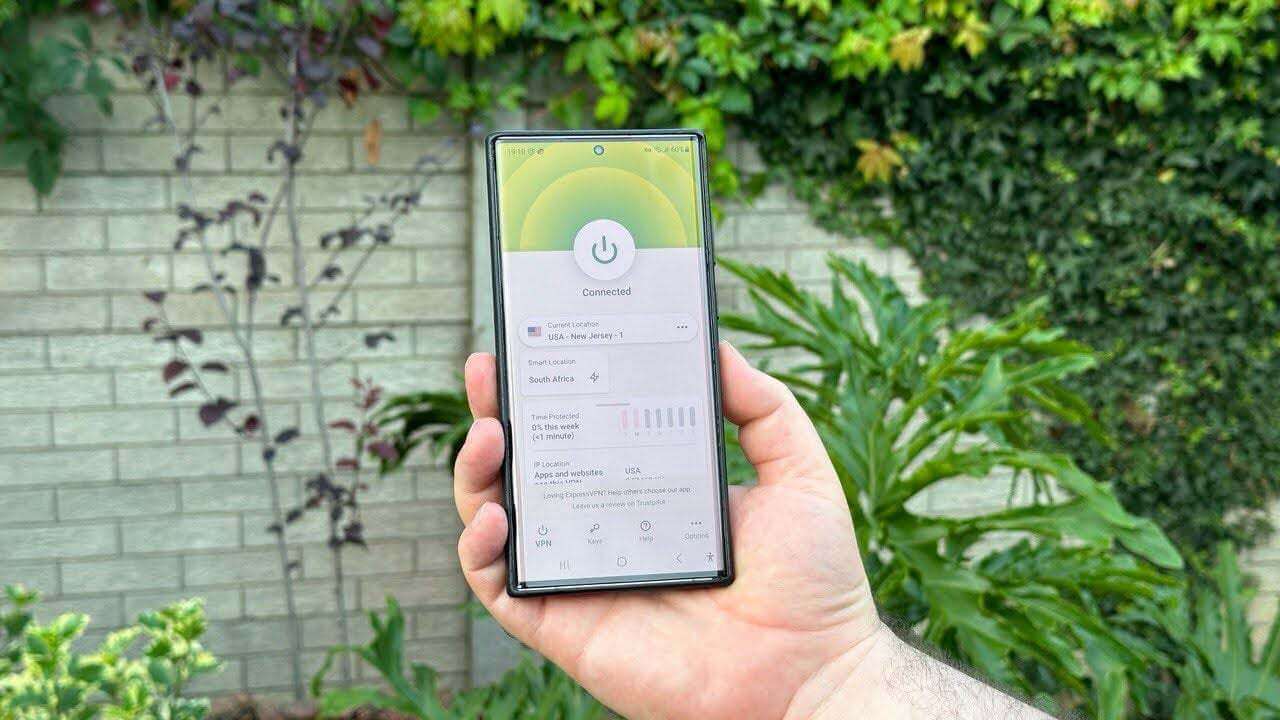
If a VPN does not work on Android, the cause is almost always either that the system has unloaded the VPN client from memory, or that DNS requests are going outside the tunnel. Less often, the operator’s network itself is to blame. On different firmware — Samsung One UI, Xiaomi HyperOS/MIUI, Huawei, “stock” Android — these problems look different.
Typical symptoms: the VPN drops when the screen is off; it says “connected,” but websites do not open; Wi-Fi works, but mobile data does not; some apps can access the internet, while the rest cannot.
Below is what to check, in order of likelihood. At the end there is a quick availability check through Freedom Checker, so you can understand whether you are fixing the phone or whether this is already blocking by your operator.
In short
- Disable battery optimization for the VPN app: otherwise Android unloads it in the background.
- Check “Settings → Network → Private DNS.” Enabled “auto” mode or third-party DoT often conflicts with VPN.
- Enable the system kill switch (“Always-on VPN” + “Block connections without VPN”).
- On Samsung/MIUI, disable “power saving” and “adaptive battery” for the VPN client.
- Per-app VPN is useful, but if the wrong app is selected, part of the traffic goes outside the tunnel.
- If nothing helps, check the website through Freedom Checker for your operator; the problem may not be in the phone.
Why VPN does not work on Android: the main reasons
Unlike iOS, Android gives the VPN client far fewer system guarantees. The tunnel is a regular app with permission to use VpnService, and it can easily be killed by the battery optimizer, overridden by system Private DNS, or broken by the manufacturer’s custom policy.
Battery optimization kills the VPN
When the screen turns off, Android aggressively puts background processes to sleep. If the VPN app is not in the exceptions, after 5–15 minutes the socket breaks, and when you unlock the phone you see “connected,” but in practice there are no packets until the client reconnects. Go to “Settings → Apps → your VPN → Battery → Unrestricted.” On Xiaomi, the same setting is hidden under “Autostart” and “Background activity control.”
Private DNS overrides VPN DNS
Android 9+ can encrypt DNS through Private DNS (DoT). If it is enabled, the system may send DNS requests to dns.google or cloudflare-dns.com outside the VPN tunnel. This creates a leak: websites resolve directly, the operator’s filtering sees the SNI, and you think the traffic is hidden. Switch Private DNS to “Off” and rely on DNS inside the VPN, or configure Private DNS to use your VPN provider’s DoT resolver.
The manufacturer has restricted background networks
Samsung, Xiaomi, Honor, Huawei and others add their own “improvements” on top of Android. Without warning, they can restrict network activity for background apps, disable VPN at low battery, or drop the tunnel when switching between Wi-Fi networks. The fix is to disable “power saving,” “adaptive battery” and “mobile data optimization” specifically for the VPN client.
Kill switch is enabled, but you need internet
The system kill switch (“Always-on VPN” → “Block connections without VPN”) is useful protection: if the tunnel goes down, all traffic is blocked. But if the VPN cannot come up (bad server, protocol blocking), the user sees “no internet.” This is not a bug — it is intended behavior. Check whether the VPN can come up at all before blaming the kill switch.
Per-app VPN is a double film
Many clients (WireGuard, V2RayNG, Hiddify, NekoBox) allow only selected apps to be routed through the tunnel. If the browser or messenger is not on the list, they continue to connect directly and “do not work through the VPN.” Open the app settings → “Included/excluded apps” and make sure the list matches what you expect.
How to understand what exactly broke on Android
| Symptom | Possible cause | What to check |
|---|---|---|
| VPN drops after the screen is turned off | Battery optimization unloads the client | Remove the restriction in battery settings; on MIUI, enable autostart |
| Connected, but websites open with a RU IP | Private DNS is bypassing the VPN | Disable Private DNS or specify the VPN provider’s DoT server |
| Some apps go outside the tunnel | Per-app VPN: the app is not on the list | Open the client settings and add it to “Included” |
| No internet at all when the VPN does not come up | Kill switch is active (always-on VPN) | Temporarily disable “Block connections without VPN” |
| VPN works on Wi-Fi, does not work on LTE | The operator is restricting the protocol / MTU | Change protocol (WG → VLESS), MTU 1280–1380 |
| On Samsung/Xiaomi, the VPN breaks once an hour | Third-party firmware “power saving” | Exclude the VPN client from power saving and adaptive battery |
How to check right now
Before digging into firmware settings, it makes sense to find out whether the problem is on your device or whether the website currently does not open on your operator at all. Freedom Checker regularly probes popular resources through different operators, regions and protocols.
If the website is green on other operators and red on yours, the cause is blocking, and changing Android settings is pointless. If it is green everywhere, the problem is local to the phone: battery, Private DNS or per-app VPN.
Outage or blocking?
A server-side or network-side outage looks like this: the VPN does not work for 10–40 minutes, then comes back by itself; switching servers helps; the problem appears the same way on any device in one network.
Blocking behaves differently: the tunnel comes up, but there is no traffic; it drops a minute after the handshake; it repeats only on one operator (for example, on MegaFon LTE) or only in one region. In this case, changing Android settings is pointless — you need to change the protocol or server.
What to pay attention to
- Set the VPN client to “unrestricted” for battery, and enable autostart on MIUI.
- Set Private DNS to “Off” if you are not sure it does not duplicate your VPN.
- Enable the kill switch deliberately: it really does block internet without the tunnel.
- For per-app VPN, check the list after every major app update.
- Use MTU 1280–1380 for mobile internet.
- After a firmware update, recheck all power-saving settings.
- If nothing helps, compare with the availability map for your operator.
Conclusion
“VPN does not work on Android” is in most cases not the app and not the server, but Android-specific behavior: battery, Private DNS and manufacturer customizations. Remove these traps, and the tunnel will stay up.
If you are sure the phone is clean, but the website still does not open, this is already in the blocking area. Check whether it is available on your operator at all.